ESP32 is a microcontroller with integrated Wi-Fi & Bluetooth and can be programmed on the same Arduino IDE.
To know about how Bluetooth works, click on the following link.
Bluetooth: what is it and how does it work?Click here
About ESP32
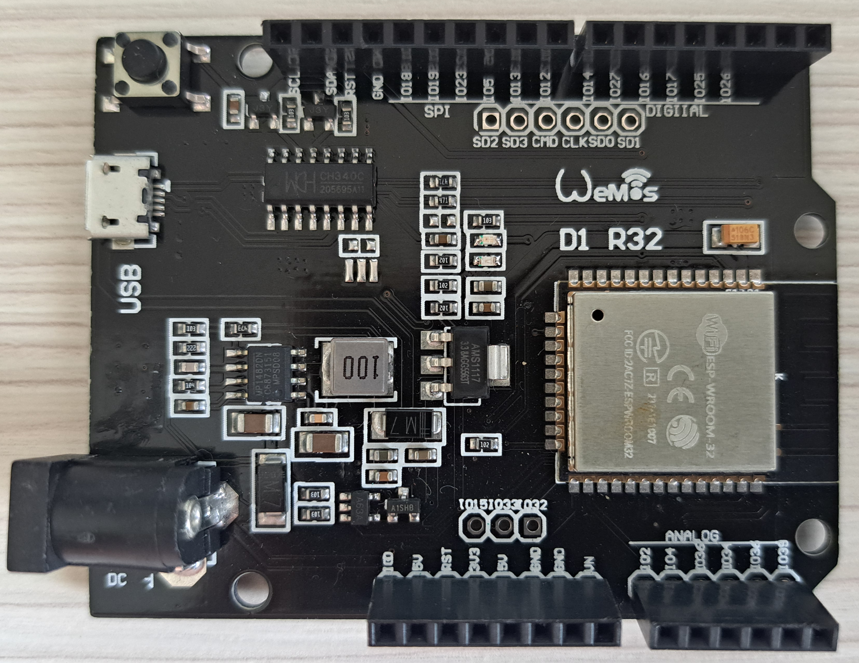
It was manufactured by the Chinese company Espressif; it’s a chip with Bluetooth and WiFi on the 2.4 GHz frequency, therefore, can be used for projects related to the Internet of Things (IoT). It has a microprocessor Xtensa LX6 Dual-Core with 32 bits and a clock speed of 240 MHz. There are many board models with ESP32, for this post, the ESP32 Wemos D1 R32 was chosen.
ESP32 Wemos D1 R32


Enabling ESP32 on Arduino IDE
First, connect the board to a PC’s USB port. Then, on Arduino IDE’s window, go to File -> Preferences.

Must appear this window.


Then, click on Tools -> Board -> esp32. To use the ESP32 Wemos D1 R32, choose the board WEMOS D1 R32. Don’t forget to select the serial port (COM). Finally, you can program it as an Arduino. Except that you must put PIN number that is on the board. For example, to control an LED connected to IO14, you must write the line code “#define PINO_LED 14” or “const int LED=14;”.
Controlling a servomotor with ESP32
Here is shown how to control a servomotor using the microcontroller and a web server. First, make the connections between board and servo: red wire with 5V, brown or black wire with GND, and orange, yellow, or white wire with GPIO13 or any other pin with PWM.

The library to control servomotors with ESP32 is called ESP32Servo.h.
Creating a web server
With the goal to control a servo using the internet, lets create a web server. First, upload this code to verify if the microcontroller can detect close WiFi networks.
#include <WiFi.h>

void setup() {
  Serial.begin(115200);
  WiFi.mode(WIFI_STA);
  WiFi.disconnect();
  delay(100);
}

void loop() {
  Serial.println("Scanning for Wi-Fi networks...");
  int n = WiFi.scanNetworks();
  if (n == 0) {
    Serial.println("No networks found");
  } else {
    for (int i = 0; i < n; ++i) {
      Serial.printf("%d: %s (%d dBm)\n", i + 1, WiFi.SSID(i).c_str(), WiFi.RSSI(i));
    }
  }
  delay(5000);
}
Then, upload this code to find IP board and choose a network that ESP32 can detect.
#include <WiFi.h> //Necessary library.

const char* ssid = "Write your network's name here.";
const char* password = "Write your network's password here.";

WiFiServer server(80);//Defines the gate where server operates, 80 for html.

void setup()
{
  Serial.begin(115200);
  delay(10);
  // Conecting to Wi-Fi
  Serial.println("Conectando ao WiFi...");
  WiFi.begin(ssid, password);  //Initiates connection with WiFi.
  while (WiFi.status() != WL_CONNECTED) //In this loop, ESP32 tries to connect//with //the network until succeeds.
  {
    delay(1000);
    Serial.println("Tentando conectar...");
  }
  Serial.println("Conectado!");
  Serial.print("Endereço IP: ");
  Serial.println(WiFi.localIP());
  // Iniciando o servidor.
  server.begin();
}

void loop()
{
  WiFiClient client = server.available();
  if (client) //Verify if there is a connected client.
  {
    Serial.println("Cliente conectado.");
    String request = "";
    while (client.connected())
    {
      if (client.available())//Interacts with client if available.
      {
        char c = client.read();//Reading data sent by client.
        request += c;
        if (c == '\n')
        {
          // Received complete requisition.
          Serial.print("Requisição: ");
          Serial.println(request);
          // HTTP Response.
          client.println("HTTP/1.1 200 OK");
          client.println("Content-type:text/html");
          client.println();
          // Body page.
          client.println("<!DOCTYPE HTML>");
          client.println("<html>");
          client.println("<h1>Hello World!</h1>");
          client.println("</html>");
          break;
        }
      }
    }
    delay(1);
    client.stop();
    Serial.println("Cliente desconectado.");
  }
}
When write http://’your IP number’ on browser, must appear this page. Don’t write https://’your IP number’, otherwise the server won’t open.

Modifying code to control a servomotor
This is a modified code to control servomotor’s position with 5 buttons.
#include <ESP32Servo.h>
#include <WiFi.h>

static const int servoPin=13;
const char* ssid = "Write your network name here.";
const char* password = "Write your network's password here.";

int p;

WiFiServer server(80);
Servo servo;

void setup()
{
  servo.attach(servoPin);
  Serial.begin(115200);
  delay(10);
  // Conecting to Wi-Fi.
  Serial.println("Conectando ao WiFi...");
  WiFi.begin(ssid, password);
  while (WiFi.status() != WL_CONNECTED)
  {
    delay(1000);
    Serial.println("Tentando conectar...");
  }
  Serial.println("Conectado!");
  Serial.print("Endereço IP: ");
  Serial.println(WiFi.localIP());
  // Initiating server.
  server.begin();
  p=90;
  servo.write(p);
}

void loop()
{
  WiFiClient client = server.available();
  if (client)//Verifies if client is connected.
  {
    Serial.println("Cliente conectado.");
    String request = "";
    while (client.connected())
    {
      if (client.available())
      {
        char c = client.read();
        request += c;
        if (c == '\n')
        {
       //Processing requisition. How buttons must work.
          if (request.indexOf("/SERVO=0") != -1){
            p=0;
            servo.write(p);
          }
          if (request.indexOf("/SERVO=180") != -1){
            p=180;
            servo.write(p);
          }
          if (request.indexOf("/SERVO=90") != -1){
            p=90;
            servo.write(p);
          }
          if (request.indexOf("/SERVO=PLUS") != -1){
            p=p+10;
            servo.write(p);
          }
          if (request.indexOf("/SERVO=MINUS") != -1){
            p=p-10;
            servo.write(p);
          }
          // HTTP Response.
          client.println("HTTP/1.1 200 OK");
          client.println("Content-type:text/html");
          client.println();
          // Body page.
          client.println("<!DOCTYPE HTML>");
          client.println("<html>");
          client.println("<h1>Buttons to control servo</h1>");
//These are the buttons that will appear on the web server.
          client.println("<p><a href=\"/SERVO=0\"><button>0</button></a></p>");
          client.println("<p><a href=\"/SERVO=180\"><button>180</button></a></p>");
          client.println("<p><a href=\"/SERVO=90\"><button>90</button></a></p>");
          client.println("<p><a href=\"/SERVO=PLUS\"><button>+</button></a></p>");
          client.println("<p><a href=\"/SERVO=MINUS\"><button>-</button></a></p>");
          client.println("</html>");
          break;
        }
      }
    }
    delay(1);
    client.stop();
    Serial.println("Cliente desconectado.");
  }
}
The video below shows a servomotor control through a web server.